












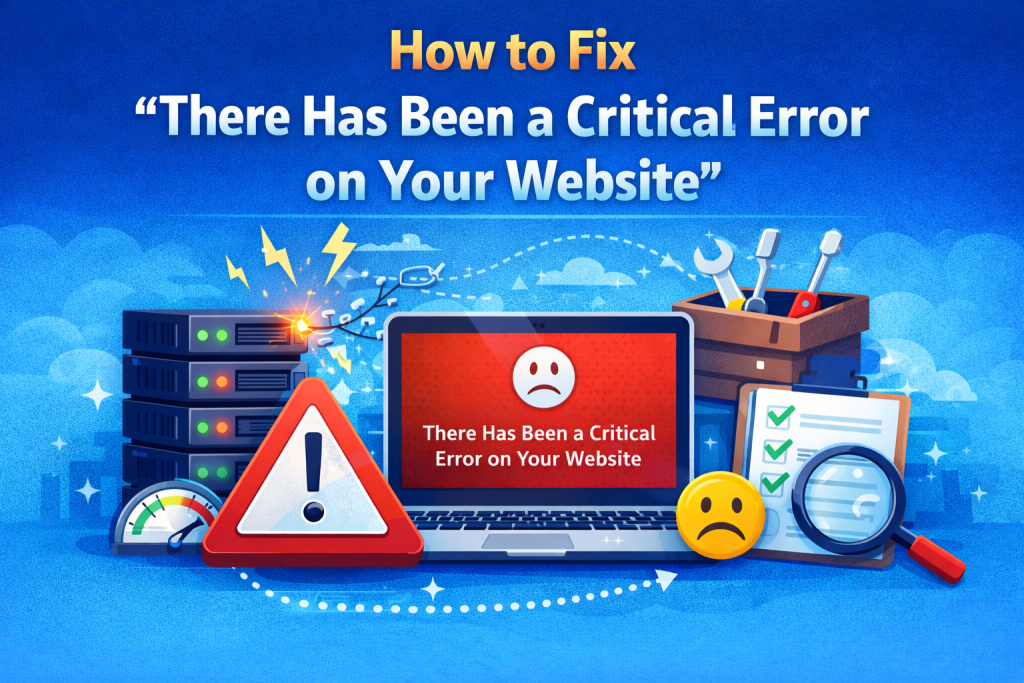
If you have a WordPress website, you may one day see this scary message:
“There has been a critical error on your website.”
This error may happens when something is wrong in your website’s code, plugins, themes, or server issues. The worst part is your website may become completely inaccessible to visitors. Follow this steps:
What Causes the WordPress Critical Error?
This error commonly happens due to:
-
Plugin or theme conflicts
-
PHP version incompatibility
-
Insufficient PHP memory limit
-
Corrupted WordPress core files
-
Malware or hacked files
-
Server-side issues
Step 1: Check Your Email for Error Details
When this error occurs, WordPress usually sends an email to the site administrator.
That email may include:
- The plugin or theme causing the issue
- The exact file and line number
- A recovery mode login link
📌 Always check your inbox first — this step alone can save a lot of time.
Step 2: Enable WordPress Debug Mode
					define('WP_DEBUG', true);
define('WP_DEBUG_LOG', true);
define('WP_DEBUG_DISPLAY', true);
This will show the exact error message and helps you to find out what is the real problem
⚠️ Remember to disable debug mode after fixing the issue.
Step 3: Deactivate All Plugins
Plugin conflicts are one of the most common causes.
How to do it:
Go to your website files
Open the wp-content folder
Rename the plugins folder to plugins-old
Refresh your website
If the site loads, a plugin is causing the issue. Rename the folder back and activate plugins one by one to find the faulty one.
Step 4: Switch to a Default WordPress Theme
Sometimes the problem comes from your active theme.
You can:
Rename your current theme folder
WordPress will automatically switch to a default theme like Twenty Twenty-Four
If the website loads, your theme is the issue.
Step 5: Increase PHP Memory Limit
Low PHP memory is another common reason for critical errors.
Add this line to wp-config.php:
define('WP_MEMORY_LIMIT', '256M');
This gives WordPress more memory to run properly.
Step 6: Update Your PHP Version
An outdated or incompatible PHP version can break your site.
Check your hosting control panel and:
Switch to a stable PHP version (8.0 or 8.1 recommended)
Avoid beta or experimental versions
Step 7: Reinstall WordPress Core Files
If WordPress core files are corrupted:
Download fresh WordPress files
Replace the wp-admin and wp-includes folders
Do NOT touch the wp-content folder
This safely restores core files without affecting your content.
Step 8: Scan for Malware
If your site was hacked, malware can trigger critical errors.
Run a security scan using:
Wordfence
Sucuri
iThemes Security
Malware removal may be required before the site works normally again.
When Should You Call a WordPress Expert?
If you:
- Can’t access your admin panel
- Don’t understand code errors
- Are afraid of breaking your site
- Need urgent recovery
Then it’s best to hire a professional.
A wrong fix can make things worse.
We Fix WordPress Critical Errors Fast
If your website is down and showing the “critical error” message, we can help.
Our Services Include:
- Plugin & theme conflict fixes
- Server & PHP compatibility solutions
- Malware cleanup
- Core file repair
- Speed & security optimization
- Full website recovery
Contact us today and get your WordPress site back online quickly!
Final Words
This “critical error” message may be frustrating. But in most cases this issue can be completely fixed. If there is a plugin issue, theme issue, or server problem, the solution is closer than it seems.
If you want a stress free solution, let our experts handle everything for you.